Track Order


 (844) 915 8880


 Table of Contents
- Understanding Your Gaming Needs and Budget
- Let’s Learn About Core Components of Your Gaming PC
- Essential Tools and Preparation
- Step-by-Step Assembly Process
- Post-Build Setup and Optimization
- Advanced Optimization Techniques
- Peripheral Selection and Setup
- Troubleshooting Common Issues
- Future-Proofing Your Build
- Maintenance and Longevity
- Conclusion
- FAQ’s

Building a gaming PC remains one of the most rewarding and cost-effective ways to achieve maximum gaming performance in 2025. With rapidly evolving hardware, new technologies such as PCIe 5.0, DDR5 memory, and advanced ray tracing capabilities, creating the perfect gaming desktop PC requires careful planning and an understanding of current market trends. This comprehensive guide covers everything from essential gaming PC parts to advanced optimization techniques, providing expert insights for both beginners and experienced builders.
Understanding Your Gaming Needs and Budget
Before diving into gaming PC component selection, establishing clear goals and budget parameters is crucial for a successful build. The gaming PC market in 2025 offers unprecedented options across all price ranges, from budget-friendly 1080p systems to high-end 4K powerhouses. Modern gaming demands vary significantly depending on your target resolution, desired frame rates, and the types of games you play.
Budget allocation should prioritize the graphics card and gaming PC processor, as these components have the most significant impact on gaming performance. Entry-level builds targeting 1080p gaming typically start at around $700-800, while mid-range 1440p systems range from $1,100 to $ 1,700, and high-end 4K builds can exceed $2,400. Setting realistic expectations helps avoid the common pitfall of incremental upgrades that significantly inflate costs.
Let’s Learn About Core Components of Your Gaming PC
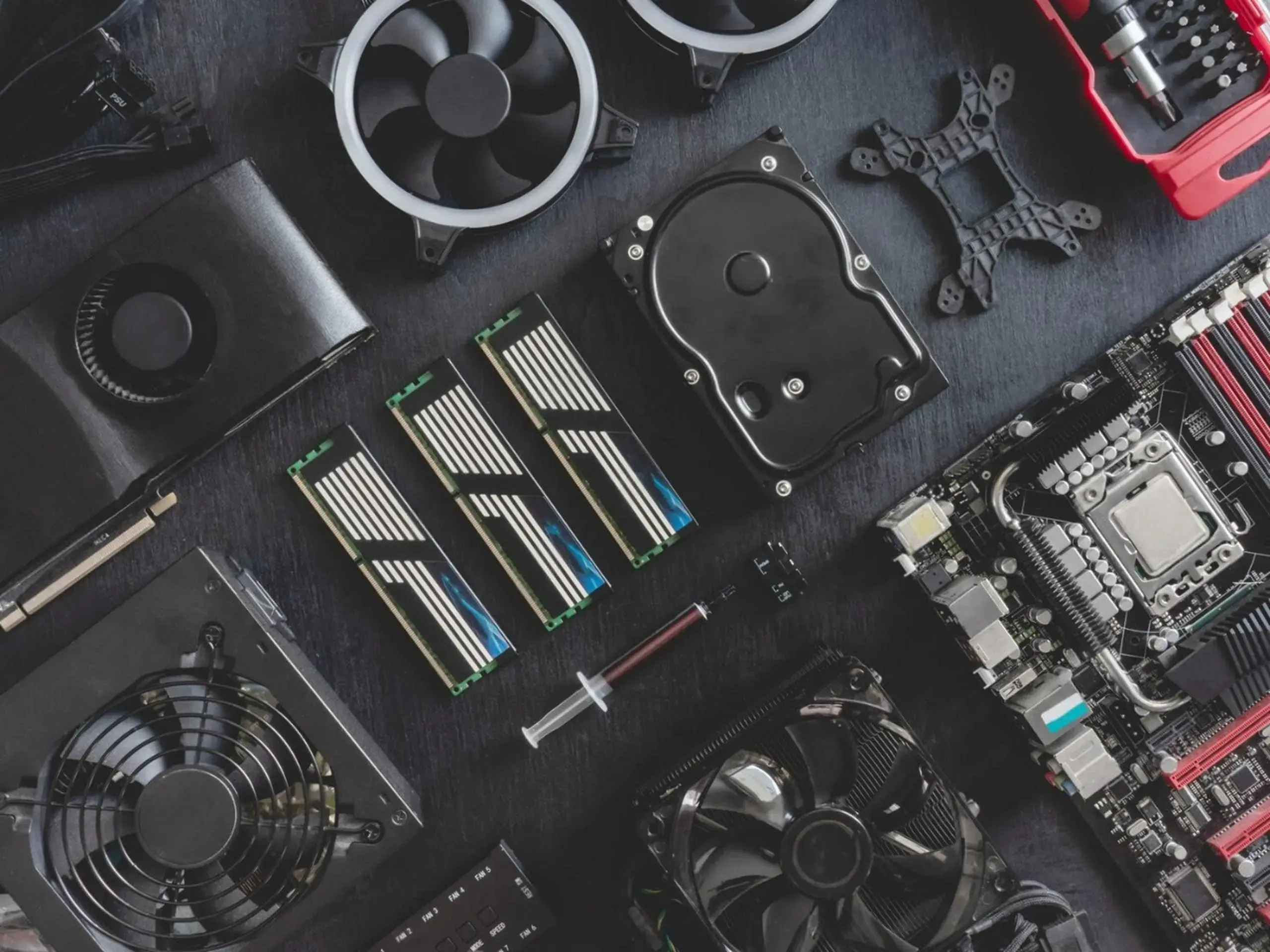
Choosing the right gaming PC parts is essential to building a system that delivers exceptional performance and longevity. The core components, including the gaming PC processor, graphics card, gaming PC motherboard, memory, and storage, form the backbone of your gaming desktop PC. Understanding how these gaming PC components interact and their impact on gaming performance helps you to make informed decisions tailored to your budget and gaming needs.
Gaming PC Processor
The gaming PC processor serves as the brain of your system, handling game logic, physics calculations, and background processes. In 2025, gaming CPUs will benefit significantly from higher core counts and advanced cache technologies. AMD's Ryzen processors, particularly the 7800X3D and newer 9000X3D series, lead in gaming performance thanks to their 3D V-Cache technology.
For budget builds, the AMD Ryzen 5 7600 offers excellent value with 6 cores and 12 threads, while Intel's Core i5-14400 provides competitive performance. Mid-range options include the Ryzen 7 5700X3D, which delivers exceptional 1080p gaming performance. High-end builders should consider the Ryzen 9 9950X3D for ultimate gaming performance and future-proofing.

Graphics Card
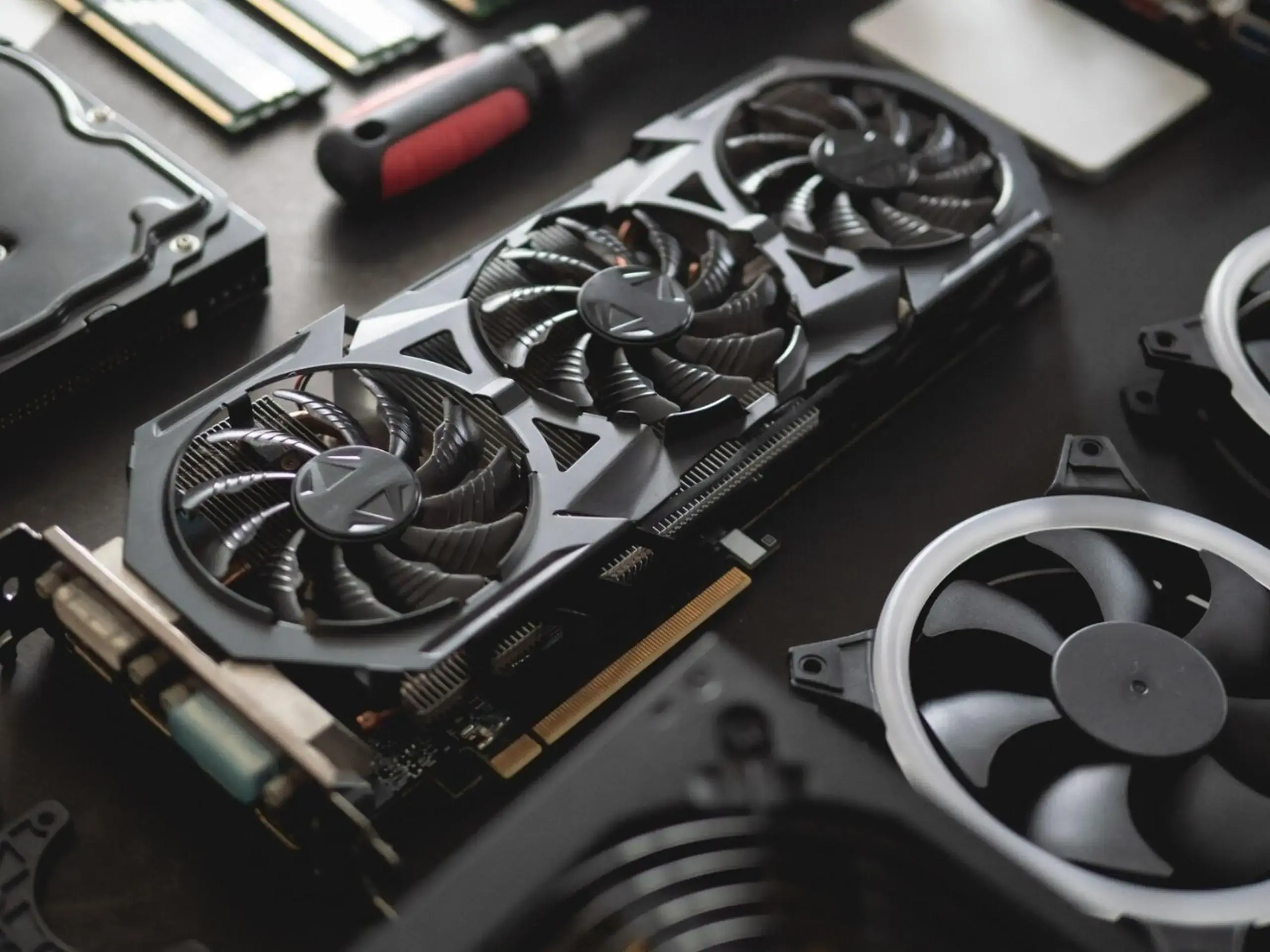
The graphics card is arguably the most critical gaming PC component for performance, directly impacting frame rates and visual quality. In 2025, the best graphics card for gaming PC setups is NVIDIA's RTX 5080, which offers substantial improvements in ray tracing and rasterization performance, running 30% faster than the RTX 4080 with improved power efficiency.
AMD's Radeon RX 8700 XT offers excellent 1440p performance, enhanced efficiency, and improved driver support, making it a strong value proposition. For budget-conscious builders, Intel's Arc A580 Pro delivers solid 1080p performance at $329. The GPU market continues to emphasize features like AI-powered frame generation and advanced upscaling technologies.
Gaming PC Motherboard
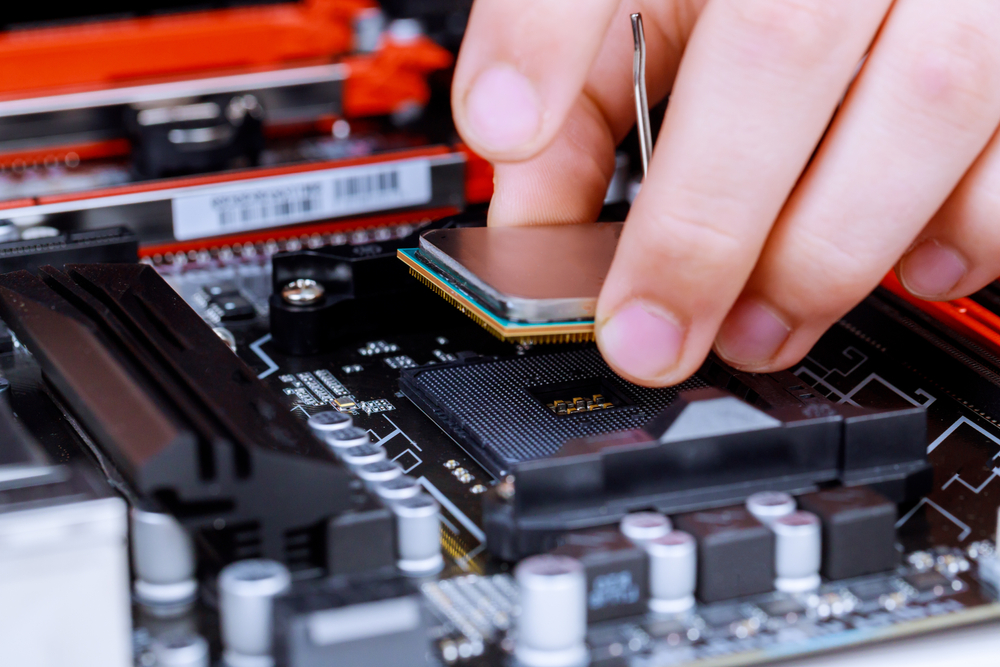
The gaming PC motherboard connects all components and determines future upgrade paths. Choose a motherboard that supports your CPU socket and desired features like Wi-Fi, multiple GPU slots, and adequate I/O connectivity. Budget builds can utilize B-series chipsets like the B650 for AMD or B760 for Intel, while enthusiast builds benefit from X-series chipsets offering additional features.
Ensure your gaming PC motherboard supports the latest technologies, such as PCIe 5.0 and DDR5 memory, and has sufficient M.2 slots for storage expansion. BIOS flashback functionality is crucial when pairing newer CPUs with older motherboard chipsets.
Memory (RAM) and Storage
Modern gaming requires substantial memory capacity, with 32GB becoming the recommended standard for enthusiast builds. DDR5 memory has become mainstream in 2025, offering significant performance benefits over DDR4. For budget builds, 16GB of DDR4-3200 remains adequate, while high-end systems benefit from 32GB or more of DDR5-6000 or faster memory.

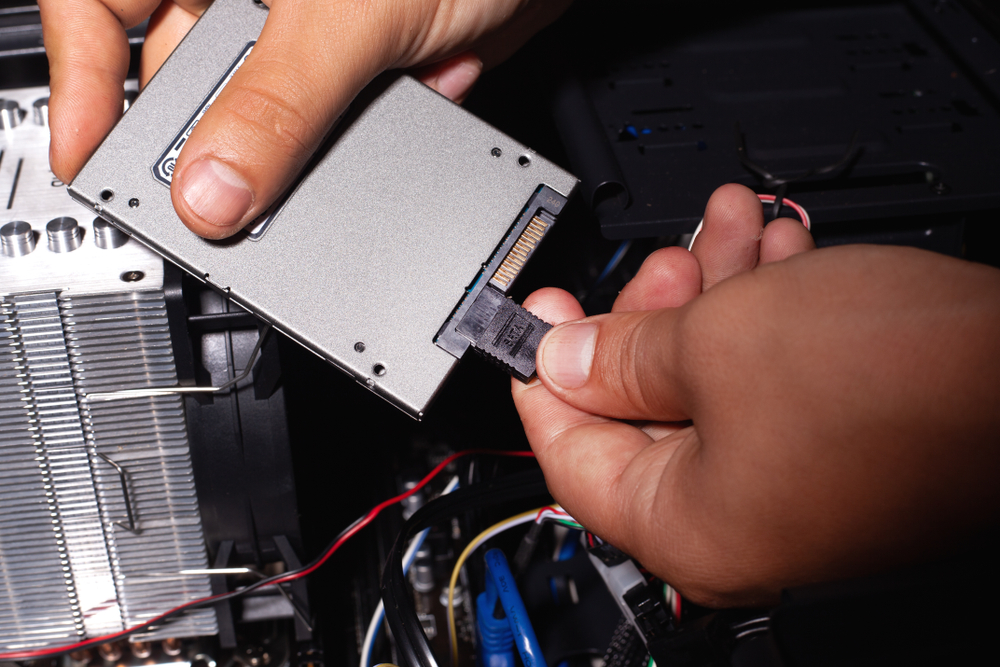
Storage technology has evolved dramatically, with NVMe SSDs becoming the standard for gaming systems. A minimum of 1TB storage is recommended for modern gaming, with 2TB being preferable for users with extensive game libraries. PCIe 4.0 drives offer the best balance of performance and value, while PCIe 5.0 drives provide minimal benefits for gaming at significantly higher costs.
Best Power Supply for Gaming PC
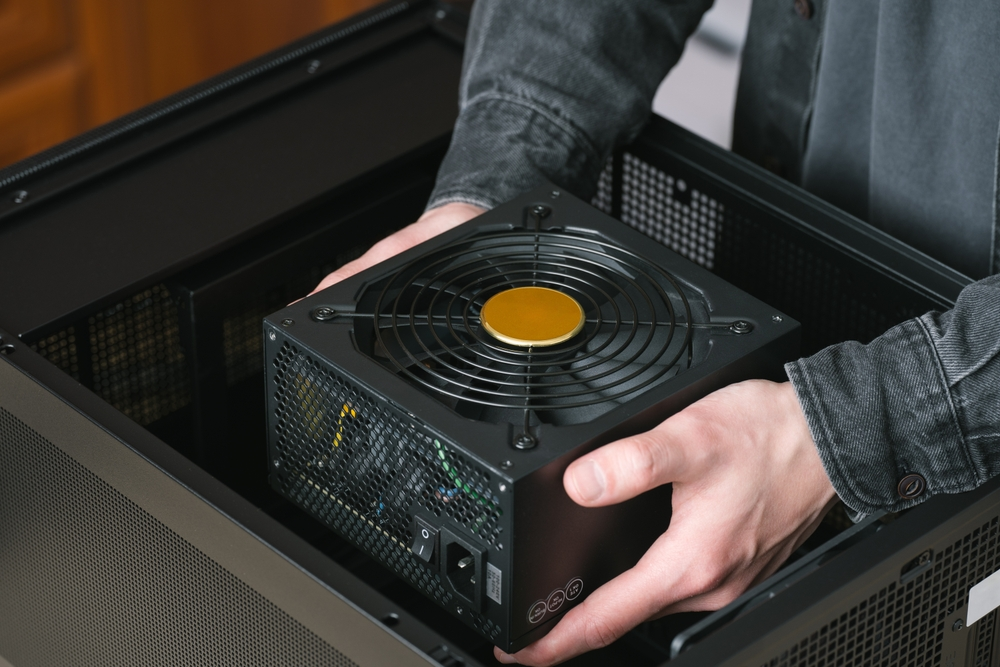
A high-quality power supply is essential for maintaining system stability and prolonging component longevity. Calculate your system's power requirements and add 20-30% headroom for efficiency and future upgrades. Bronze-rated PSUs are adequate for budget builds, while Gold or Platinum ratings offer better efficiency for high-end systems.
The best power supply for gaming PC setups should be modular to simplify cable management and have appropriate connectors for your graphics card and other components.
Gaming CPU Cooler
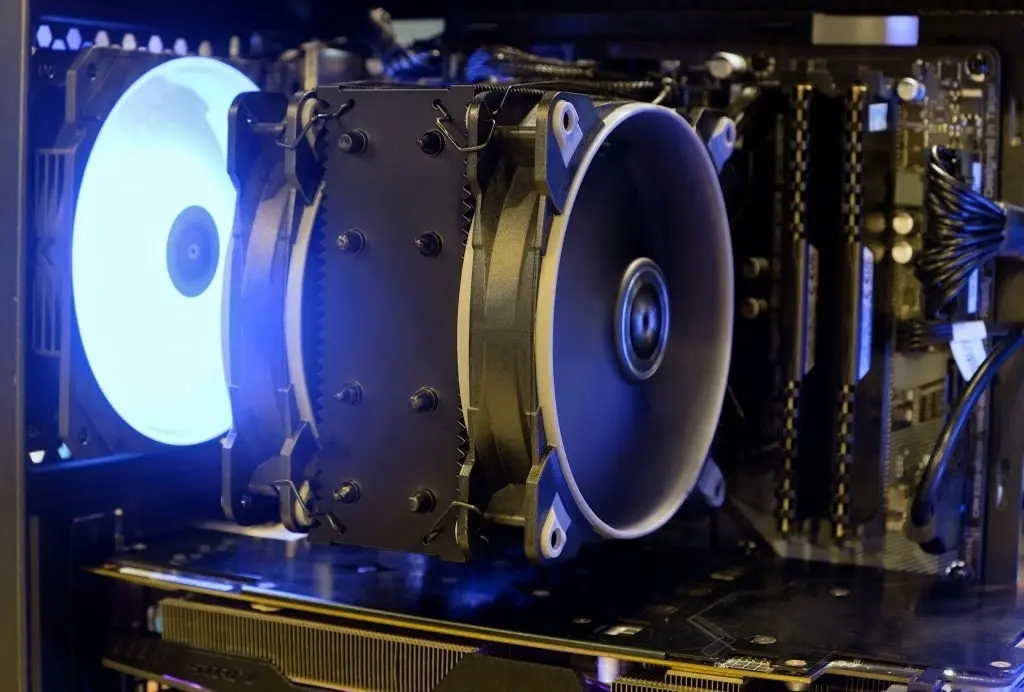
Proper cooling maintains optimal performance and component longevity. Most modern CPUs come with adequate stock coolers for basic operation, but aftermarket gaming CPU coolers offer improved performance and acoustics. Air coolers, like 240mm AIO options, provide excellent cooling for most CPUs.
High-end builds benefit from larger AIO coolers (280mm or 360mm) or premium air coolers. Consider your case's cooling capabilities and plan for positive pressure airflow to minimize dust accumulation.
Case and Form Factor
The case houses all components and affects cooling, aesthetics, and expandability. ATX cases offer maximum flexibility, while micro-ATX provides a good balance of size and features. Consider tempered glass panels for showcasing components, adequate fan mounting points, and cable management features.
Essential Tools and Preparation
Successful PC building requires the proper tools and preparation of the workspace. Essential tools include Phillips #2 and #1 screwdrivers, with magnetic tips preferred to prevent dropped screws. Additional useful tools include needle-nose pliers, cable ties, and an anti-static wrist strap.
Prepare a clean, well-lit workspace on a non-carpeted surface to minimize the risk of static electricity. Organize components and their accessories, keeping manuals accessible for reference. Create a bootable USB drive with your operating system installer before beginning assembly.
Step-by-Step Assembly Process
Building your gaming PC from scratch can seem daunting, but a systematic approach makes the process easier. This section guides you through the assembly of your gaming PC components, from installing the gaming PC motherboard and gaming CPU cooler to mounting the graphics card and connecting power. Following these steps carefully ensures a stable and efficient build ready for gaming.
Initial Preparation
Begin by reviewing all component manuals and confirming compatibility. Install the I/O shield in your case before mounting the gaming PC motherboard. This is commonly forgotten and requires motherboard removal if missed. Prepare your workspace with adequate lighting and organization systems for screws and small parts.
Motherboard Assembly
Begin by preparing the motherboard outside the case. Install the gaming PC processor carefully, ensuring it is properly aligned with the socket markings. Apply thermal paste if your gaming CPU cooler doesn't include pre-applied paste, using a small rice-grain-sized amount. Install RAM in the correct slots according to your motherboard manual, typically slots 2 and 4 for a dual-channel configuration.
Storage and Expansion Cards
Install M.2 SSDs directly onto the motherboard, securing with the provided screws. If using traditional SATA drives, plan cable routing before installation. Install any additional expansion cards like network adapters or sound cards.
Case Preparation and Installation
Prepare your case by installing standoffs and any pre-planned fans as needed. Install the power supply, taking into account cable routing and orientation. Mount the motherboard carefully, ensuring all standoffs align properly and no cables are trapped underneath.
Final Connections and Testing
Connect all power cables to the motherboard, including the 24-pin ATX and CPU power connectors. Install the graphics card in the topmost PCIe slot and connect the power cables. Connect all front panel connectors, USB headers, and fan cables according to the instructions in your motherboard manual.
Post-Build Setup and Optimization
Once your gaming desktop PC is assembled, proper setup and optimization are critical to unlocking its full potential. This phase includes configuring BIOS settings, installing drivers for your graphics card and other components, and setting up your Monitor with the right resolution and refresh rate via DisplayPort. Optimizing these elements ensures a smooth gameplay experience and responsiveness.
BIOS Configuration
Power on your system and enter the BIOS to configure basic settings. Enable XMP/EXPO profiles for memory to achieve rated speeds. Update BIOS firmware if necessary, particularly for newer CPU compatibility. Configure fan curves for optimal temperature and noise balance.
Operating System Installation
Install your operating system from a USB drive, creating a local account when possible. Install the motherboard chipset drivers first, followed by the graphics card drivers, for optimal performance. Enable Windows updates and install essential software.
Driver Installation and Updates
Install the latest graphics card drivers from NVIDIA or AMD for optimal gaming performance. Update motherboard chipset drivers, network adapters, and any other hardware-specific drivers. Configure graphics settings and enable features like G-Sync or FreeSync via DisplayPort.
Advanced Optimization Techniques
For enthusiasts seeking peak performance, advanced optimization techniques can make a significant difference. From fine-tuning your gaming CPU cooler settings to managing VRAM usage and optimizing storage speeds, these strategies enhance system stability and frame rates. Proper thermal management and noise reduction also contribute to a better gaming environment.
Thermal Management
Monitor system temperatures using software like HWMonitor or MSI Afterburner. Optimize case airflow by maintaining slightly positive pressure (10-20% more intake than exhaust). Clean dust filters regularly and replace thermal paste every 2-3 years for optimal cooling performance.
Performance Tuning
Enable game mode in Windows and disable unnecessary background applications. Configure power plans for maximum performance during gaming sessions. Update game-specific graphics drivers and optimize in-game settings for your hardware, especially managing VRAM usage for smoother gameplay.
Cable Management
Proper cable management improves airflow and aesthetics. Use Velcro ties instead of zip ties for reusability and safety. Route cables behind the motherboard tray whenever possible, creating clean pathways for improved airflow.
RGB Lighting and Aesthetics
Modern gaming desktop PC builds often incorporate RGB lighting for visual appeal. Choose between standard RGB (12V) for uniform colors or ARGB (5V) for individual LED control. Use software like Corsair iCUE, ASUS Aura Sync, or MSI Mystic Light to synchronize lighting across components.
Plan your lighting setup thoughtfully to avoid the "rainbow puke" effect. Consider color-coded lighting to monitor system status, such as blue for low temperatures or red for high-performance modes.
Noise Reduction Strategies
Gaming PC noise can be minimized through strategic component selection and configuration. Select cases designed for quiet operation, featuring sound-dampening materials. Upgrade to silent fans or AIO coolers with low-noise profiles. Control fan speeds through BIOS or software to balance cooling and acoustics.
Consider the placement of fans and airflow direction to minimize turbulence and noise. Premium components often operate more quietly while providing better performance.
Peripheral Selection and Setup
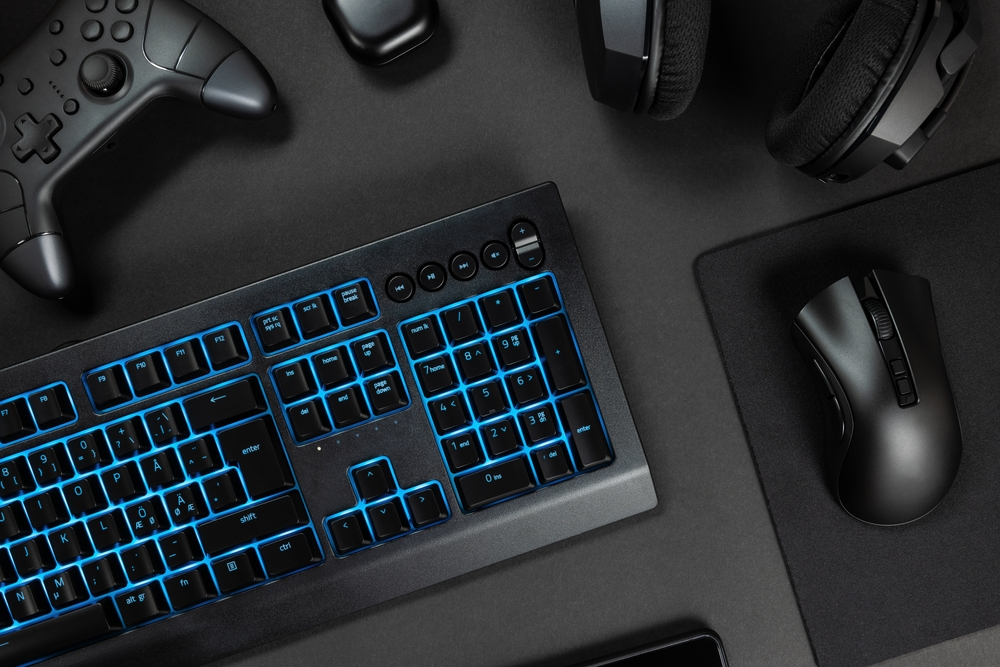
A complete gaming setup extends beyond the PC itself. Choosing the right peripherals, such as Gaming Console Controllers, Gaming Headsets, VR Accessories, and Racing Wheels, enhances immersion and control. Additionally, selecting a high-quality Monitor that supports DisplayPort and adaptive sync technologies ensures your visuals are crisp and tear-free.
Monitor and Display
Choose monitors based on your GPU's capabilities and gaming preferences. For competitive gaming, prioritize high refresh rates (144Hz or higher) and low input lag. For immersive single-player games, consider higher resolutions (1440p or 4K) with HDR support.
Ensure your monitor supports DisplayPort and adaptive sync technology (G-Sync or FreeSync), matching your GPU for tear-free gaming.
Input Devices and Audio
Select mechanical keyboards for tactile feedback and durability. Gaming mice should offer adjustable DPI and programmable buttons for different game types. Consider wireless options for reduced cable clutter.
Audio solutions range from gaming headsets for competitive play to soundbars for immersive single-player experiences. Quality gaming headsets provide positional audio advantages in competitive games.
Specialized Gaming Accessories
Enhance your gaming experience with peripherals like gaming console controllers, VR accessories, and racing wheels. These devices add immersion and precision, especially for racing, simulation, and VR titles.
Troubleshooting Common Issues
Even the best gaming PC components can encounter issues. This section addresses common issues such as performance drops, system instability, and connectivity problems. Knowing how to diagnose and resolve these issues quickly helps maintain smooth gameplay and prolongs the lifespan of your gaming desktop PC.
Performance Problems
Low FPS and stuttering often result from outdated drivers, overheating, or background applications consuming resources. Monitor system temperatures and close unnecessary programs. Update your graphics card drivers and verify game files through their respective launchers.
Thermal throttling occurs when components overheat, reducing performance to prevent damage. Improve case ventilation, clean dust from components, and consider upgrading your gaming CPU cooler for optimal performance.
System Stability Issues
Blue screen errors typically indicate hardware or driver problems. Record error codes and check for recent changes to hardware or software. Run Windows Memory Diagnostic to identify RAM issues.
Random shutdowns may occur due to power supply issues, overheating, or faulty RAM. Test components individually and monitor system temperatures during stress testing to ensure optimal performance.
Connectivity Issues
Network connectivity problems often stem from driver issues or hardware conflicts. Use wired connections for gaming when possible and configure Quality of Service (QoS) settings to prioritize gaming traffic.
Future-Proofing Your Build
Even the best gaming PC components can encounter issues. This section addresses common problems like performance drops, system instability, and connectivity troubles. Knowing how to diagnose and resolve these issues quickly helps maintain smooth gameplay and prolongs the lifespan of your gaming desktop PC.
Hardware Considerations
Future-proofing requires balancing current needs with anticipated requirements. Choose CPUs with adequate core counts (8+ cores) and modern platform support. Invest in gaming PC motherboards with upgrade potential and current-generation connectivity.
Select GPUs with sufficient VRAM (16 GB or more) for future games and higher resolutions. Plan for DDR5 memory adoption and PCIe 5.0 storage as games begin utilizing these technologies.
Upgrade Pathways
Design your build with future upgrades in mind. Choose the best power supply for a gaming PC with adequate wattage for GPU upgrades. Select motherboards that support multiple generations of CPUs. Plan storage expansion with available M.2 slots.
Consider which components provide the best longevity. Quality power supplies, cases, and cooling solutions often outlast multiple upgrade cycles.
Maintenance and Longevity
Regular maintenance keeps your gaming PC running efficiently over time. Cleaning dust from your gaming CPU cooler, monitoring storage health, and updating drivers are vital tasks. Understanding component lifespans and performing timely upgrades prolongs your system’s performance and reliability.
Regular Maintenance Tasks
Establish a maintenance schedule to ensure optimal performance. Daily tasks include monitoring antivirus status and checking system performance. Weekly maintenance involves disk cleanup and software updates.
Monthly tasks include hardware cleaning and storage management. Quarterly maintenance requires deep cleaning with compressed air and firmware updates. Monitor component temperatures regularly and replace thermal paste as needed.
Component Lifespan
Different components have varying lifespans and replacement schedules. CPUs and motherboards typically last 5-7 years before requiring replacement. GPUs may need to be upgraded every 3-5 years, depending on the gaming requirements.
Storage drives should be regularly monitored for health and replaced when they show signs of failure. Power supplies from reputable manufacturers often last 7-10 years with proper care.
Conclusion
Building the ultimate gaming PC is a rewarding journey that combines careful selection of gaming PC parts, meticulous assembly, and ongoing optimization. By focusing on core components like the gaming PC processor, graphics card, and gaming PC motherboard, and complementing them with quality peripherals such as Gaming Headsets and VR Accessories, you can craft a setup tailored to your gaming style and budget. Remember, future-proofing and regular maintenance are key to sustaining peak performance as technology advances. Whether you’re a novice or an enthusiast, this guide equips you with the knowledge to build, optimize, and enjoy the best gaming desktop PC experience in 2025 and beyond.
FAQ's
What do you need to know before buying a gaming PC?
Before purchasing a gaming PC, it’s essential to understand your gaming needs, including the types of games you play and the desired resolution and frame rates. Familiarize yourself with the crucial components of a gaming PC, including the processor, graphics card, and motherboard, as these will significantly influence performance.
What things do you need to improve your gaming setup?
Improving your gaming setup involves upgrading key gaming PC parts and peripherals. Start with a powerful graphics card that offers ample VRAM for modern titles and a reliable gaming CPU cooler to maintain optimal temperatures. Enhance your visual experience with a high-refresh-rate Monitor supporting DisplayPort and adaptive sync. Invest in peripherals such as Gaming Console Controllers and Gaming Headsets.
What is the best gaming PC configuration?
The best gaming PC configuration balances a high-performance gaming PC processor with a top-tier graphics card that has sufficient VRAM for your target resolution. Pair these with a compatible gaming PC motherboard that supports DDR5 memory and PCIe 5.0 storage. A high-quality gaming CPU cooler ensures stable temperatures, while a reliable best power supply for gaming PC guarantees consistent power delivery.
Are pre-built PCs better than custom-built ones?
Pre-built gaming desktop PCs offer convenience and warranty support, making them attractive for beginners. However, custom-built PCs allow for tailored selection of gaming PC parts, ensuring you get the best gaming PC processor, graphics card, and gaming PC motherboard for your budget and needs. Custom builds often provide better value and upgrade flexibility.